

日本語 | English


システムの定期メンテナンス日時について
以下の機能について、定期的に利用不可の時間帯が発生します。予めご承知おきください。
・蔵書検索機能(「明治大学図書館」タブ):毎週月曜日7:20~7:50
・他大学検索機能(「他大学検索」タブ):毎月第4火曜日20:00~22:00
FAQ(English)
How do I import book information from OPAC to EndNote Web?
- Method of directly importing book information from OPAC to EndNote Web
(A plugin must be downloaded before book information can be imported.)- Log in to EndNote Web.
* Users who do not have an account with EndNote are requested to register as users from "Account Registration."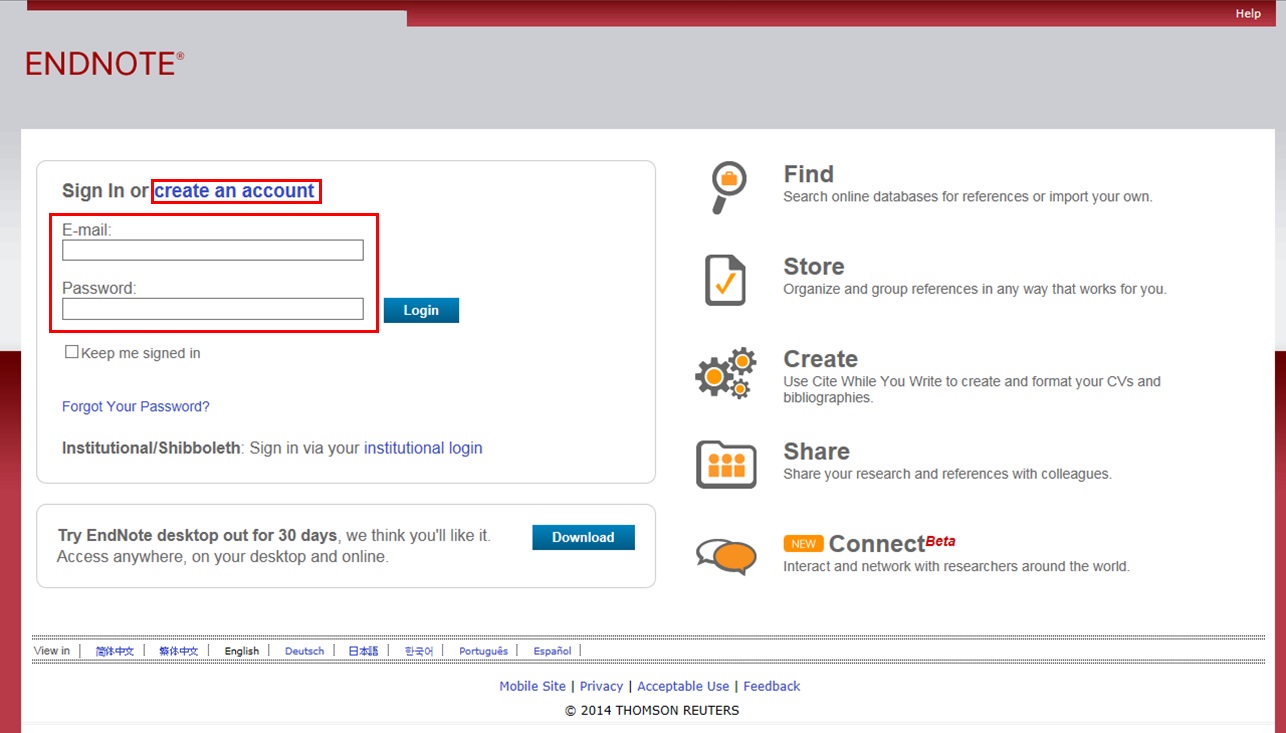
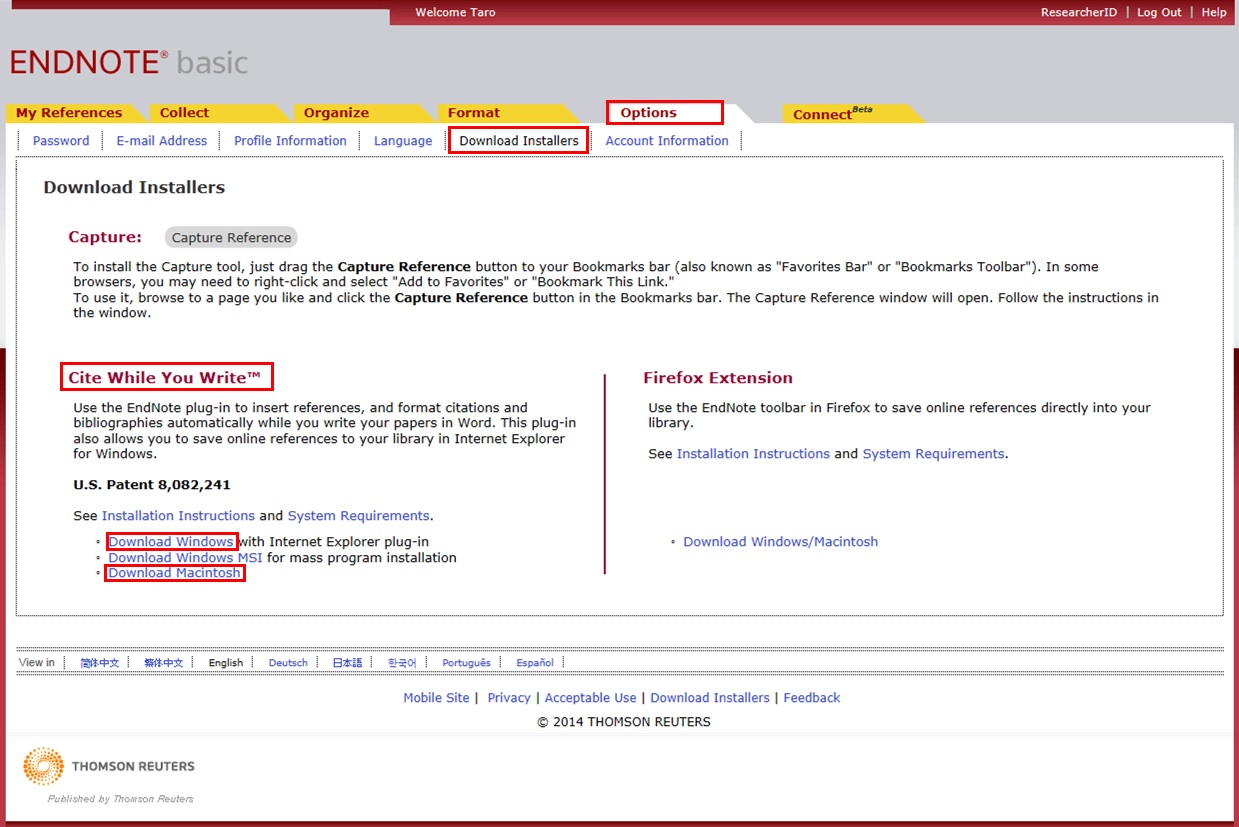
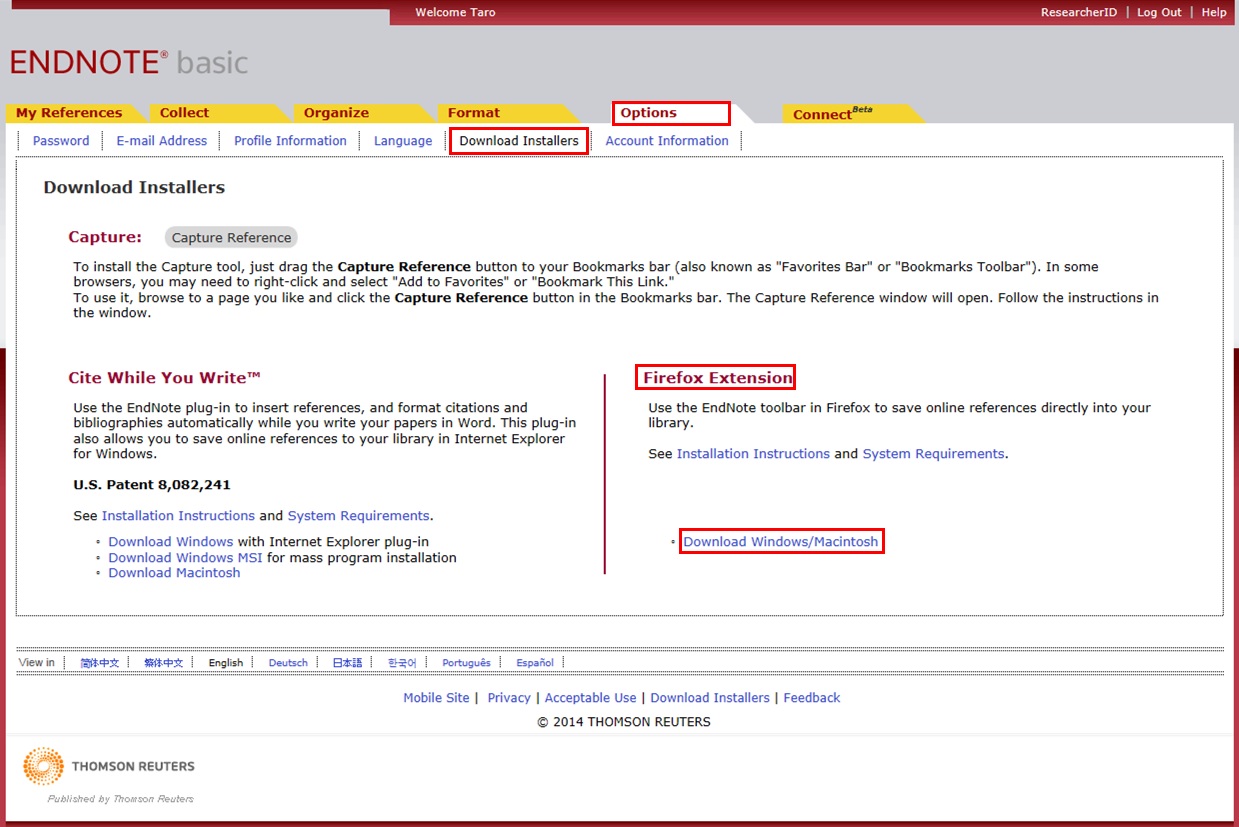
- Click [Options] -> [Download Plugin].
- If you are using Internet Explorer or Safari as the browser, select "Download Windows Version" or "Download Macintosh Version" from CWYW (Cite While You Write), according to the operating system used on your computer, to download the plugin.
- If you are using Firefox as the browser
- Click "Download Windows/Macintosh Version" in Firefox Extensions to download the plugin.
- When a message prompting you to restart Firefox appears, restart Firefox.
- From the Firefox menu, click [Tools] -> [Add-ons] -> [Extensions]. Then, click [Options] of EndNote Web.
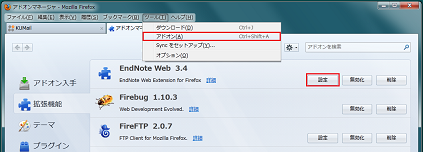
- Confirm that the pop-up check box is checked.
(If it is not, enter a check mark.)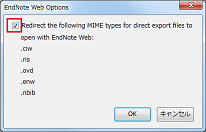
- If you are using Internet Explorer or Safari as the browser, select "Download Windows Version" or "Download Macintosh Version" from CWYW (Cite While You Write), according to the operating system used on your computer, to download the plugin.
- Log in to EndNote Web.
- Click "Book Management" on the bibliography search result list screen or bibliography details screen.
(The bibliography to be imported must be selected on the bibliography search result list screen.) - When the "Select Export Destination" pop-up appears, select "EndNote Web."
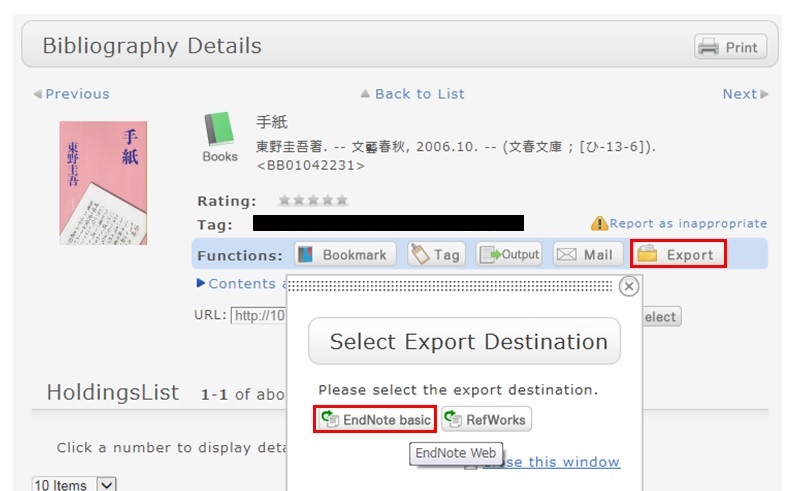
- The selected bibliography is imported to EndNote Web. (If you are not logged in to EndNote Web, a login screen appears. Log in by entering your e-mail address and password.)
Method without downloading a plugin
- Click "Output" on the bibliography search result list screen or bibliography details screen.
(The bibliography to be imported must be selected on the bibliography search result list screen.) - When the "Select the file output format" pop-up appears, select "RIS format."
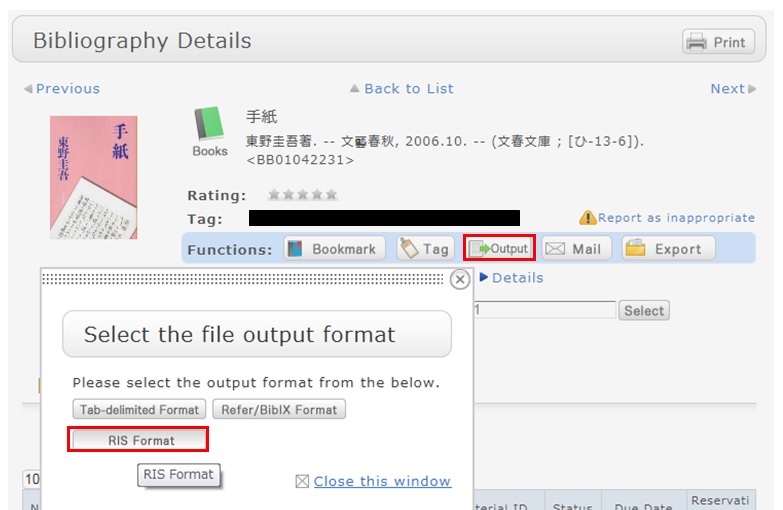
- The file is downloaded. Save the file at an appropriate location on your computer.
- Log in to EndNote Web.
* Users who do not have an account with EndNote are requested to register as users from "Account Registration." - Click [Collect] -> [Reference Point].
- Click the [Browse] button in "File," and select the newly saved file.
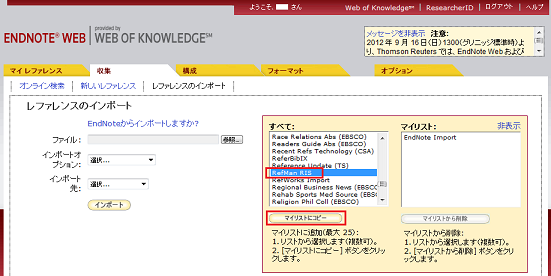
- Select "RefMan RIS" for "Import Options."
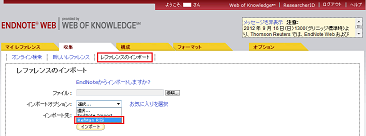
- Specify the import destination folder in "Import Destination," and click the [Import] button.
- The selected bibliography is imported to EndNote Web.
* If "RefMan RIS" does not appear in "Import Options," click "Select Favorites," select "RefMan RIS," and click [Copy to My List] to add the file to My List. 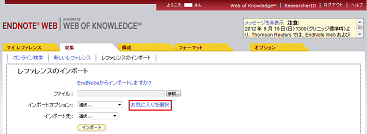
 Reference:
EndNote Web help - importing references
EndNote Web operating environment (supported browsers) (Usaco)